
Why Colour Contrast Matters for Digital Accessibility


A set of coloured pencils forming a colour wheel to demonstrate colour contrast.

Colour contrast can remove barriers or create them before content is even read.

Contrast is one of the simplest ways to make digital content easier to use. Yet it is also one of the most overlooked. When contrast is poor, people struggle to read, find information, or use websites and apps. Good design isn’t just about looking nice. It’s about making content usable for everyone.

Contrast is more than a design choice. It decides whether people can access information, complete tasks, and engage online. Without enough contrast, even the clearest text becomes invisible.

A sign with the words, What does it mean?

What Is Contrast?

Contrast is the difference between two colours. Usually, this means text against its background. High contrast makes words easy to read. Low contrast makes text fade or blend into the page.

Contrast is everywhere in digital content. It affects all parts of a document or website including:

  • Paragraph text
  • Headings and subheadings
  • Links and buttons
  • Icons and labels
  • Form fields and error messages
  • Text on images
  • Charts and graphs

If any of these elements are hard to see, the content is not readable by the user.

W3C Logo

Web Content Accessibility Guidelines (WCAG) 

The Web Content Accessibility Guidelines (WCAG) include a rule called 1.4.3 Contrast (Minimum). This is a Level AA rule. This sets a standard to make text readable for people with visual and other processing difficulties.

Under WCAG 1.4.3:

  • Normal text must have a contrast ratio of at least 4.5:1
  • Large text must have a contrast ratio of at least 3:1

Large text means bigger text greater than 18 pixels or bold text greater than 16 pixels, not just headings. These ratios are based on research into how people with low vision perceive text. Meeting this standard ensures content is usable, not just visually tidy.

The Contrast rule does not apply to incidental text on logos or “Text or images of text that are part of an inactive user interface component, that are pure decoration, that are not visible to anyone, or that are part of a picture that contains significant other visual content, have no contrast requirement.”

A woman is sitting at a desk feeling frustrated

Who Struggles with 

Low Contrast?

Poor contrast affects a wide range of people. It’s not only an issue for a small group.

People with low vision may see text but only if the contrast is strong. When contrast is too low, letters blur together, and reading becomes slow or impossible. Conditions like macular degeneration, glaucoma, cataracts, and diabetes-related eye disease all impact contrast perception.

Older people naturally lose some ability to see differences in colour. Thin fonts or pale colours may be fine for younger users but can be difficult for older adults.

People with colour vision differences can’t always tell some colours apart. Relying on colour alone makes text, links, charts, and status indicators hard to understand.

People with cognitive or neurological conditions can struggle when low contrast increases mental effort. Hard-to-read text makes it tiring to understand, particularly for those with dyslexia, brain injury, or attention difficulties.

Everyone in everyday situations can be affected. Low contrast makes reading harder in bright sunlight, on small screens, or on older monitors. Even tired eyes struggle when contrast is low.



Failure sign with a 3d image of a person sitting on the floor holding their head

Common Contrast Problems

Many contrast issues come from design choices. Examples include:

  • Light grey text on white backgrounds.  In other words, colours of the same hue being used together.
  • Text over busy photos
  • Thin fonts with little contrast
  • Faded placeholder text in forms
  • Buttons blending into the background
  • Links only identified by colour

These choices may look modern or subtle, but they create barriers for users.


Application and Accessibility Tools Sign

Tools to Check Contrast

Contrast should never be guessed. Tools make it simple to test colours and images.

The Shannon Towell Design Multi Colour Checker tests colour combinations to see if they meet WCAG requirements. It’s especially helpful when working with brand colours.
The Shannon Towell Design Photo Analyser checks text over images to ensure it’s readable. This is useful for banners, hero images, or social media graphics.
Using these tools early prevents accessibility problems later.


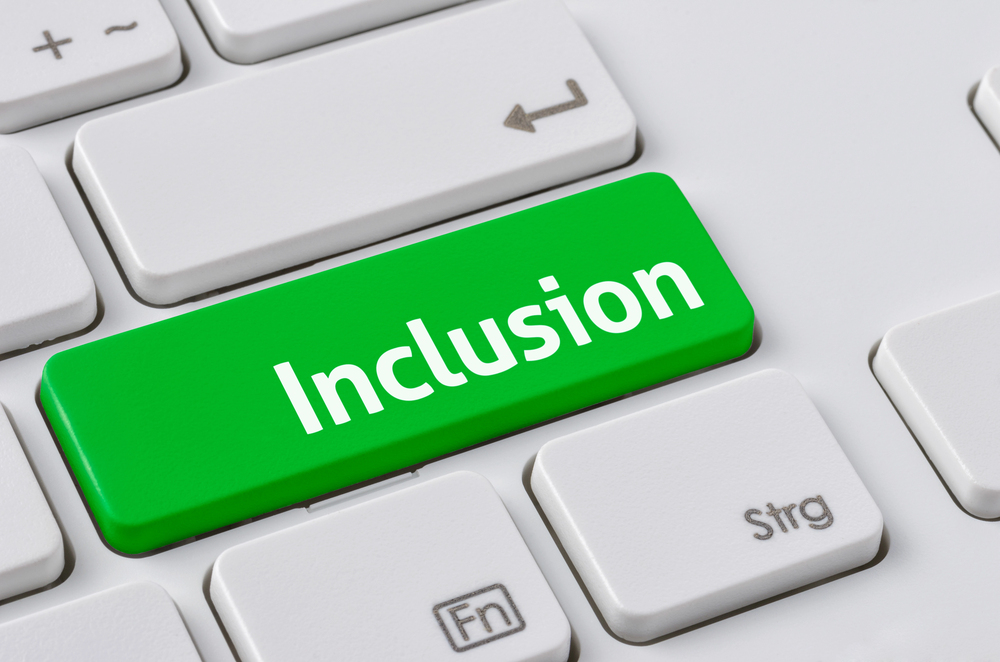
The word, Inclusion, is on the enter key of a keyboard. It encourages accessible communication.

Contrast Is About Inclusion

Contrast is about respect. It acknowledges that people experience content differently and ensures everyone can access it.

When contrast is ignored, people are excluded quietly. They may struggle, guess, or leave. This exclusion often goes unnoticed.

Meeting WCAG 1.4.3 shows that accessibility was considered from the start. It prioritises usability over style and signals that inclusion matters.

Good contrast is just one part of making digital content accessible. For a wider approach, explore our Making documents readable for everyone article to see how small design choices can make a big difference for all users.


Break the Beliefs Words 'Barrier free' on white note with a pen on top.

Small Changes, 

Big Impact

Improving contrast is simple and effective. Small changes in colour can make content readable and reduce frustration.

Good contrast:

  • Makes text easier to read
  • Keeps users engaged longer
  • Reduces errors and confusion
  • Increases trust
  • Shows that accessibility is taken seriously

Contrast ensures information is seen and understood. Without it, even the clearest message can be lost.

Ask yourself: Is your content readable for everyone, regardless of age, ability, or device?